
Installing or Upgrading Your Web Browser
To install or upgrade your web browser, please visit one of the browser websites. Detailed installation instructions are provide by each browser maker. You'll need to select a browser that is available for your operating system. We strongly recommend that you use the latest version of one of these browsers that we test and support:
- Google Chrome (Windows/Mac/Linux)
- Mozilla Firefox (Windows/Mac/Linux)
- Microsoft Internet Explorer (Windows) – May require a system reboot.
- Apple Safari (Mac)
Not sure what browser you are using? Check out whatbrowser.org to find out. You might also learn something about why it's so important to stay up-to-date.
Enabling JavaScript
If using a supported browser JavaScript may be disabled. It is also possible to start plugins or extensions that will prevent JavaScript code from running. If so, please consult any documentation for plugins you have installed. Otherwise, select a browser below to view the instructions:
Internet Explorer 7+
- Click the Tools menu
- Select Internet Options
- Click the Security tab
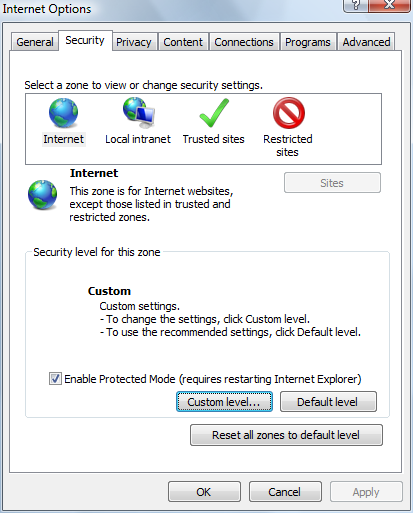
- Click the Custom Level button
- Scroll down until you see the 'Scripting' section. Select 'Enable'
under 'Active Scripting.'
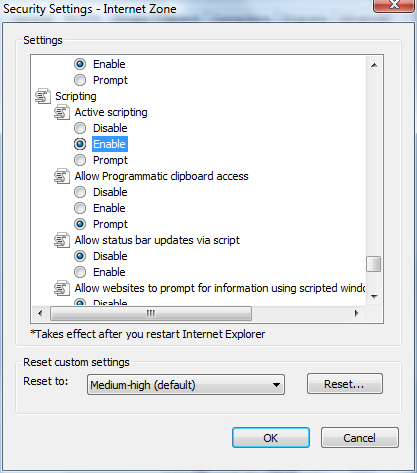
- Click the OK button
- Click the Yes button in the confirmation window


Firefox 3+
- Click the Tools menu
- Select Options
- Click the Contents tab
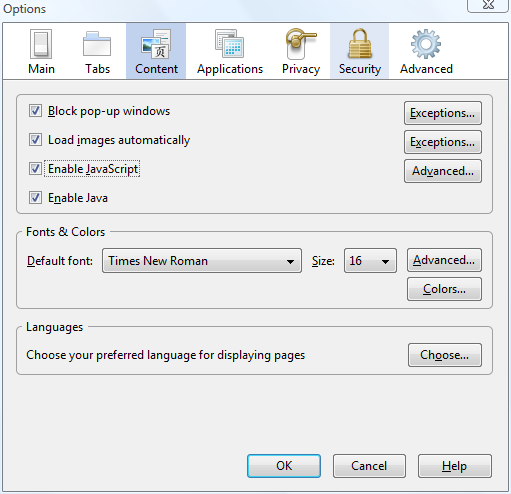
- Select the 'Enable JavaScript' checkbox
- Click the OK button

Safari 3+
- Click Edit in the tool bar
- Select Preferences
- Click the Security tab
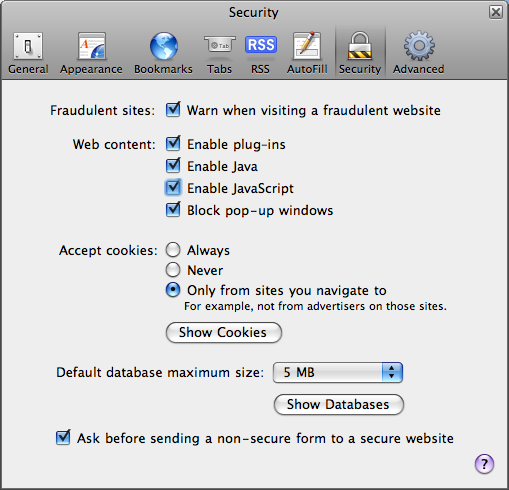
- Select the 'Enable JavaScript' checkbox

Adjusting Your Monitor Resolution
For optimum viewing, we recommend that you change your monitor resolution to at least 1024 by 768. For instructions on how to change your screen resolution, please select your Operating System:
Windows XP
- Right-click on your computer's desktop
- In the menu that appears, left-click on Properties
- In the Display Properties dialogue box, click on the Settings Tab at the top
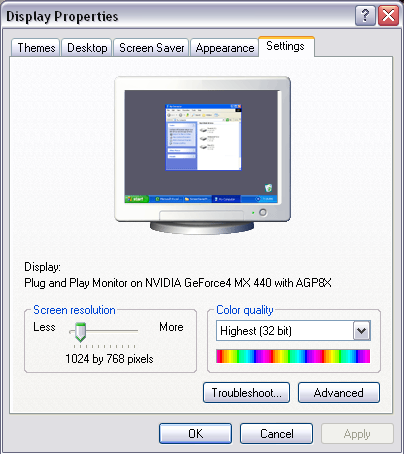
- Under Screen Resolution, slide the pointer to the left or right. For Telenect, we recommend setting the resolution to at least 1024 by 768 (higher is better). The resolution options available on your specific system will depend on your video card and monitor.
- Once you have selected the proper screen resolution, click Apply.

Windows Vista/7
- Click on Start
- Select Control Panel
- Click on Personalization
- Select Display Settings
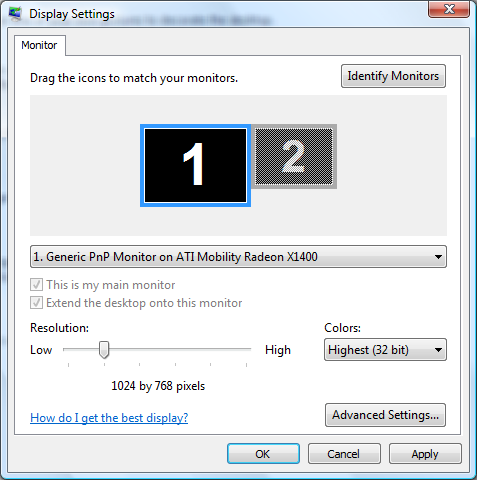
- Under 1024 by 768 or higher. The resolution options available on your specific system will depend on your video card and monitor.
- Once you have selected the proper resolution, click Apply.
- Click OK

Mac OS X
- Click the Apple Menu in the top-left corner
- Select System Preferences...
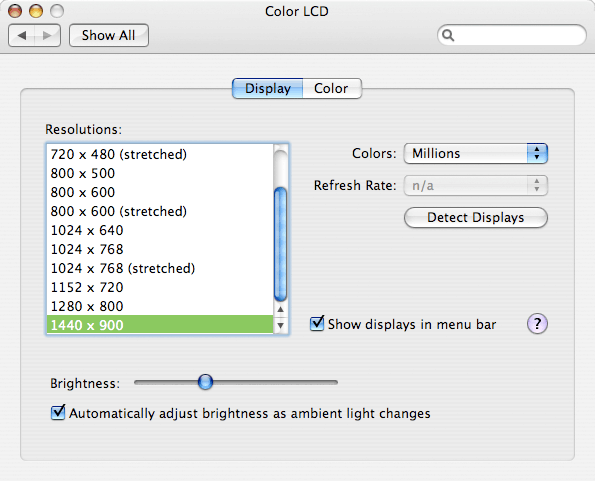
- In the Hardware section, select Displays
- In the Resolutions list, select an option 1024x768 or higher

Adjusting Your Browser Viewing Area
The browser viewing area, or viewport is the portion of the screen actual showing a web page. This excludes menus and toolbars that are part of your browser or operating system. If you are below the recommended 1000 x 777, these steps may help. Please note that a smaller viewport does not prevent viewing, but it may require scrolling the screen to see all of the event controls.
If you haven't already, try to maximize the window to fill the whole screen.
If you still need a larger viewing area, see if your browser supports a full screen mode. In Windows, the F11 key often toggles to full screen. On a Mac, you typically can press CTRL+CMD+F. For more information, see your browser's documentation.
You might also see if you can increase the screen resolution of your monitor, or watch the event on another computer.
Installing or Upgrading Flash Player
If flash is already installed, the system test should automatically upgrade the player if necessary. Otherwise, if you need to install for the first time, use the button below.

Resolving Firewall Restrictions
Personal firewall software should not prevent viewing Telenect events. If it is suspect, try temporarily disabling your personal firewall to see if it helps. More likely, a corporate firewall may be the problem, please provide the following information to your network administrator: The video stream uses the RTMP protocol on preferred ports 1935, 443, or 80. The stream will also use HTTP Tunneling on port 80.
If you have any questions, please submit a support request.
Resolving Bandwidth Problems
A 1 megabit connection is recommended, although it may work with connections as slow as 500 kbps (kilobits per second). Bandwidth problems are often the responsibility of your ISP (Internet Service Provider) or network administrator. Before contacting your ISP, we recommend to try quitting any programs that may be consuming bandwidth on your local network.
More technical users may use these tools to test the relevant network ports.
Resolving CDN Connection Issues
Presentation slides are delivered using a Content Delivery Network (CDN). You should see a
checkmark and the text 'Slide Ready' immediately following this paragraph. If not, please show
this page to your network administrator so they can determine what is blocking the connection.
